I want you to do something before you keep reading. Pick up your phone. Look at the lock screen. Now the home screen. Now scroll through your widgets.
What language is your phone speaking to you?
If you’re trying to learn Japanese but your screen is showing weather, news, calendars, music - all in your native language - then you’re fighting a war you don’t even realize is happening. Every glance is a vote for the language you already speak. Every unlock is a missed lesson.
This guide is going to fix that. Not by adding another study session to your day. By turning the device you already touch 200+ times a day into your most patient, persistent Japanese teacher.
Why Home Screen Immersion Beats “Study Time”
The hardest thing about learning Japanese isn’t kanji. It isn’t pitch accent. It isn’t even keigo. It’s showing up tomorrow.
Every learner who hits N3 will tell you the same thing: the people who fail aren’t the ones who can’t learn - they’re the ones who can’t maintain the habit. Motivation is a wave. It crashes. And when it crashes, your “30 minutes of Japanese a day” becomes “0 minutes for the next 11 days.”
Home screen immersion sidesteps the entire willpower problem. You don’t need to remember to study. You don’t need to feel motivated. You just need to do what you were already going to do - look at your phone - and the kanji, vocabulary, and grammar are already there, waiting.
The Science: Mere Exposure + Spaced Repetition
Two cognitive science principles converge on the home screen:
- The mere exposure effect (Zajonc, 1968): repeated brief encounters with a stimulus increase familiarity and positive recognition. The brain doesn’t need to consciously study - it builds pattern recognition automatically.
- Spacing effect (Ebbinghaus, 1885): information reviewed at increasing intervals is retained dramatically better than information crammed in single sessions.
Most apps use one or the other. Home screen immersion combines them in real time. Kanjijo’s SRS engine knows which kanji are about to fade from your memory, and the widget surfaces those exact characters on your lock screen - passively, before you ever open the app.
Translation: your phone is doing forgetting-curve combat for you while you check the time.
The 4 Layers of a Japanese-Optimized Phone
A properly designed Japanese immersion phone has four layers. You don’t need all four - but each one you add multiplies the others.
| Layer | Surface | Daily Exposures | Effort |
|---|---|---|---|
| 1. Lock Screen | Kanjijo lock screen widget | 80–150 | Zero |
| 2. Home Screen | Kanjijo small + medium widgets | 50–100 | Zero |
| 3. Quiz Widget | Kanjijo interactive quiz widget | 10–30 active recalls | 2 sec each |
| 4. StandBy / Always-On | iPhone StandBy mode | While charging - passive | Zero |
Layer 1: The Lock Screen Kanji
Your lock screen is the single highest-value piece of real estate on your phone. You see it more than your kitchen, your office, or your partner’s face. And by default, it’s wasted - showing the time and a wallpaper.
Add the Kanjijo lock screen widget and that wasted real estate becomes the most-viewed flashcard in your life.
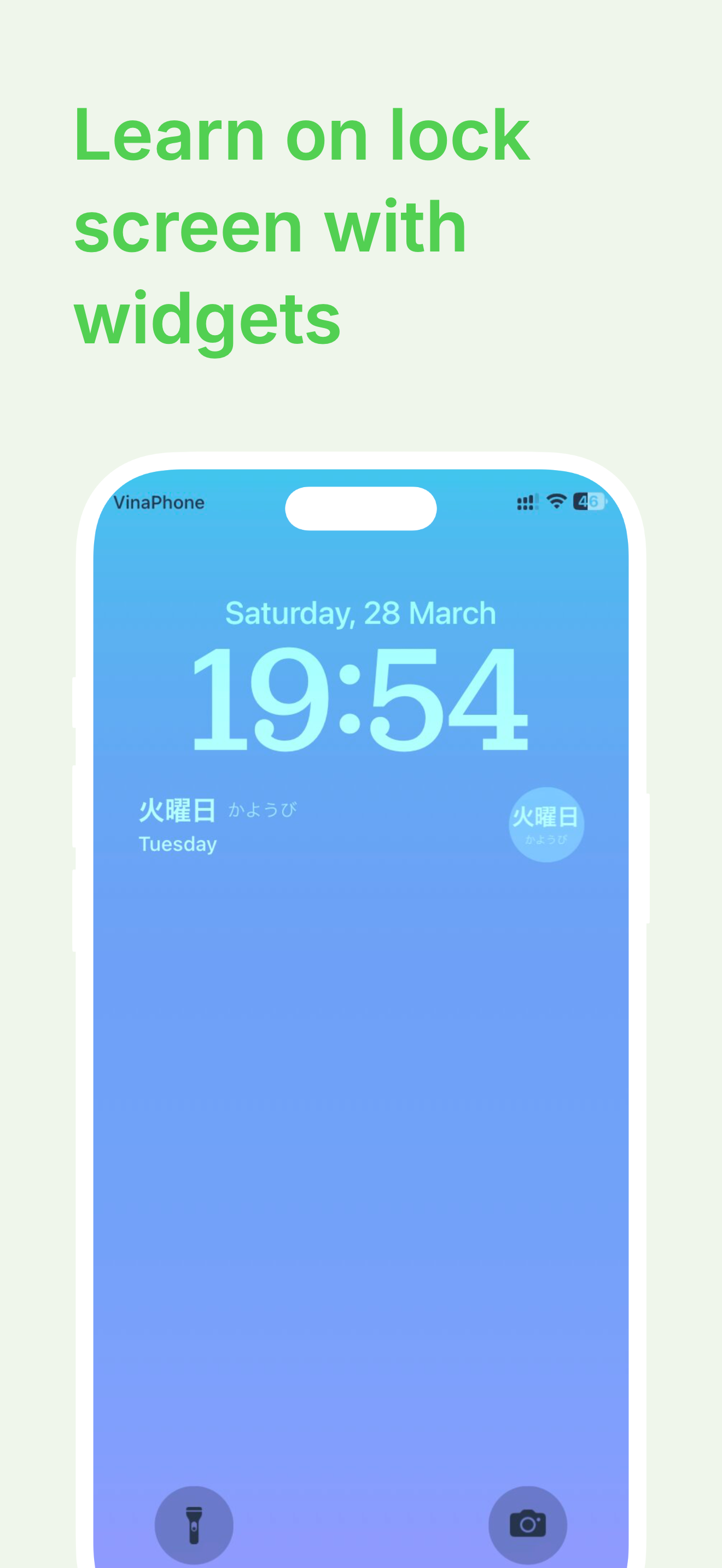
The widget cycles through kanji that are due for SRS review - meaning the characters your brain is statistically most likely to forget today. Every glance is a micro-rescue from the forgetting curve.
What to put on the lock screen:
- One kanji + reading + meaning (small widget) - best for review
- Today’s vocabulary card (rectangular widget) - best for reading practice
- A grammar pattern (rectangular widget) - best for cementing ungrasped points
Layer 2: The Home Screen as a Japanese Newspaper
Your home screen should look like the front page of a Japanese newspaper that only contains things your brain needs today.
The recommended Kanjijo home screen layout:
- Top row - large Kanjijo widget (kanji + meaning + example sentence)
- Middle row - small grammar pattern widget + small vocabulary widget side by side
- Bottom row - your normal apps
This single layout change creates 50–100 extra exposures per day with zero added study time.
Layer 3: The Quiz Widget - Active Recall Without Opening the App
This is where Kanjijo separates itself from every other Japanese app on the market.
Most widgets are read-only. They show information; you absorb it passively. That’s good - but passive exposure alone isn’t enough to convert recognition into recall.
The Kanjijo quiz widget turns your home screen into an interactive flashcard:
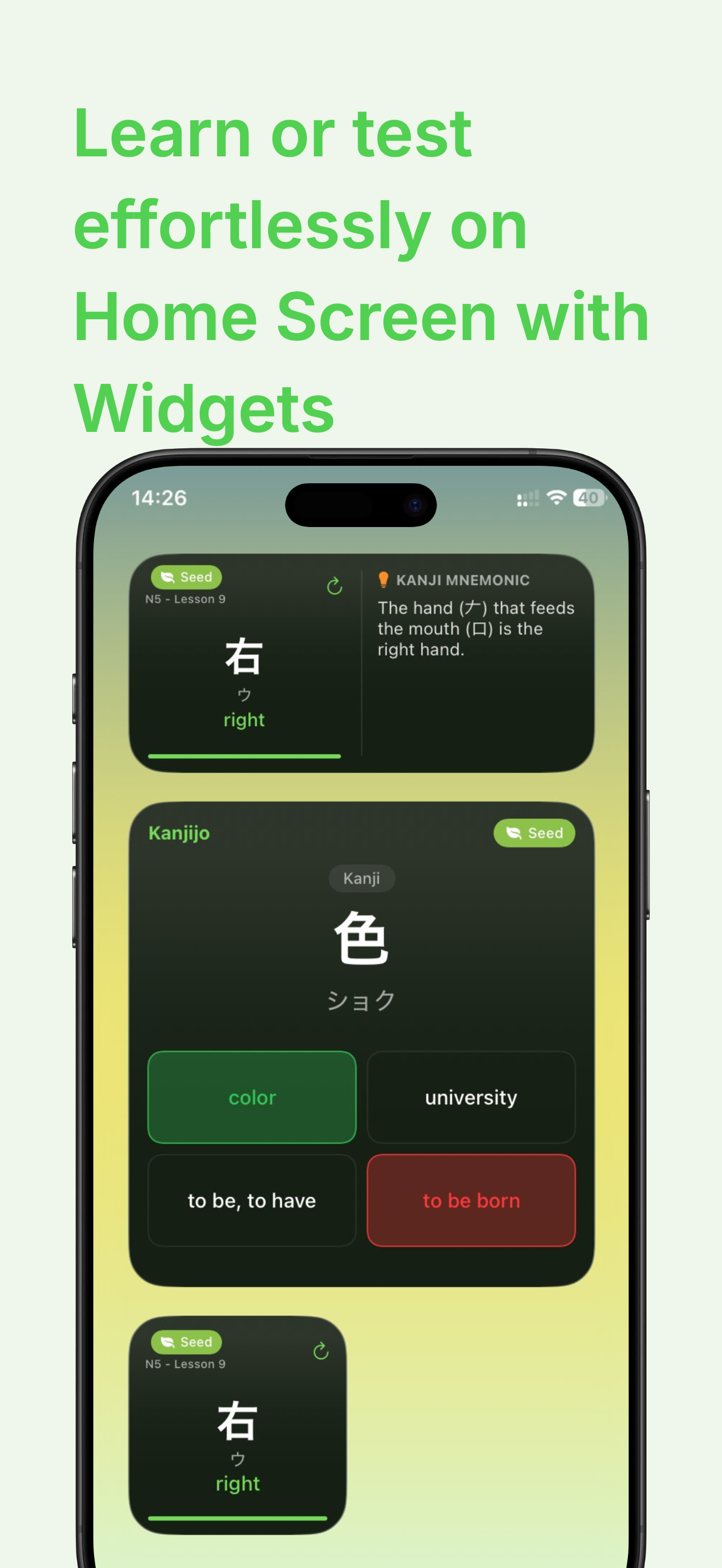
- Shows a question (kanji → meaning, vocab → reading, or grammar cloze) right on your home screen
- Tap an answer - the widget updates instantly with feedback
- Counts toward your SRS progress without opening the app
- Rotates every 15 minutes so each glance is a fresh micro-quiz
You can answer 20–30 questions a day this way between opening Instagram and replying to a text - and never once perceive yourself as “studying.”
Layer 4: StandBy & Always-On Display
If you have an iPhone 15 Pro or any modern Android with always-on display, you have a 5th study surface that runs while your phone charges.
Set Kanjijo’s widget in StandBy mode and your bedside table becomes a Japanese billboard. The last thing you see before sleep and the first thing you see in the morning is a kanji your brain needs to consolidate.
Sleep researchers have shown that information encountered immediately before sleep is preferentially consolidated into long-term memory during REM. Pre-sleep kanji exposure is functionally a free study session that happens while you’re unconscious.
Setup Walkthrough - iPhone
- Lock screen widget: Long-press lock screen → Customize → Lock Screen → Tap widget area → Search “Kanjijo” → choose Kanji / Vocab / Grammar widget
- Home screen widgets: Long-press home screen → tap “+” top-left → search Kanjijo → drag the size you want
- Quiz widget: Same as above; choose “Quiz” in the widget gallery
- StandBy: Plug iPhone in horizontally → swipe to widget panel → long-press → add Kanjijo
- Customize content: Open Kanjijo → Settings → Widgets → choose what each widget displays (current JLPT level, SRS due-only, favourites, etc.)
Setup Walkthrough - Android
- Long-press an empty area of the home screen → Widgets
- Find Kanjijo in the list → drag the widget you want
- Resize by long-pressing and dragging the corners
- For lock screen widgets (Android 14+): Settings → Wallpaper & Style → Lock Screen Widgets
- Open Kanjijo → Settings → Widgets → set rotation interval and content type
The 30-Day Home Screen Immersion Challenge
If you commit to the following for 30 days, you will not be the same Japanese learner at the end:
- Day 1–7 - Set up all 4 widget layers. Don’t add new study time. Just observe how often you naturally glance.
- Day 8–14 - Add the “guess-before-you-read” rule: every time you see a widget, try to recall the meaning before reading the answer.
- Day 15–21 - Tap the quiz widget at least 10 times per day. (You’ll do it automatically by week 3.)
- Day 22–30 - Add a 10-minute Kanjijo session in the morning. The widgets pre-loaded your brain - those sessions will feel 2x faster.
Common Objections (And Why They’re Wrong)
“Won’t I just start ignoring the widget?” - You’ll think you do. But cognitive priming works below conscious attention. Even when you stop “noticing” the widget, your brain is still encoding it.
“I want to focus on one thing - won’t mixing kanji + vocab + grammar confuse me?” - The opposite. Interleaving (mixing topics) is one of the most well-documented learning accelerants in cognitive science. Single-topic widgets are slower.
“Isn’t this just adding more screen time?” - No. It’s converting screen time you already spend into Japanese exposure. Total time is unchanged.
Why Kanjijo Was Built for This
Most Japanese apps treat widgets as marketing - a static logo or a streak counter. Kanjijo was designed widget-first. The same SRS engine that drives the in-app reviews drives the lock screen, home screen, and quiz widgets - meaning what you see on your phone is always the exact card your brain needs right now.
It’s the only Japanese app I know of that lets you complete a meaningful study session without ever opening the app.
Related Reading on Kanjijo
Frequently Asked Questions
It’s the practice of redesigning your phone’s lock screen, home screen, and StandBy display so that every glance throughout the day exposes you to Japanese kanji, vocabulary, or grammar - turning idle screen time into passive language learning.
The average person unlocks their phone 80–150 times per day and glances at it another 100+ times. With Kanjijo widgets layered on lock screen + home screen + StandBy, you create 200–300 micro-impressions per day with zero effort.
No. iOS 14+ and Android 12+ support widgets natively. Kanjijo provides home screen, lock screen, and StandBy widgets that install in seconds without any technical setup.
No. Kanjijo widgets refresh on the OS schedule (typically every 15–30 minutes) using cached SRS data. Battery and performance impact is comparable to a weather widget.
Turn Your Phone Into Your Japanese Tutor
Download Kanjijo and set up your first widget in 60 seconds. The next time you glance at your phone, the kanji will already be there.
Download Kanjijo Free